Installing Ninja Trader Addons and Indicators
If you do not have NinjaTrader installed, install it first.
Purchased a NinjaTrader Add-On or Indicator? Here’s how to install it in under 60 seconds.
Once your .zip file is downloaded, do not unzip it.
- Open NinjaTrader Desktop
- Go to Tools → Import → NinjaScript Add-On
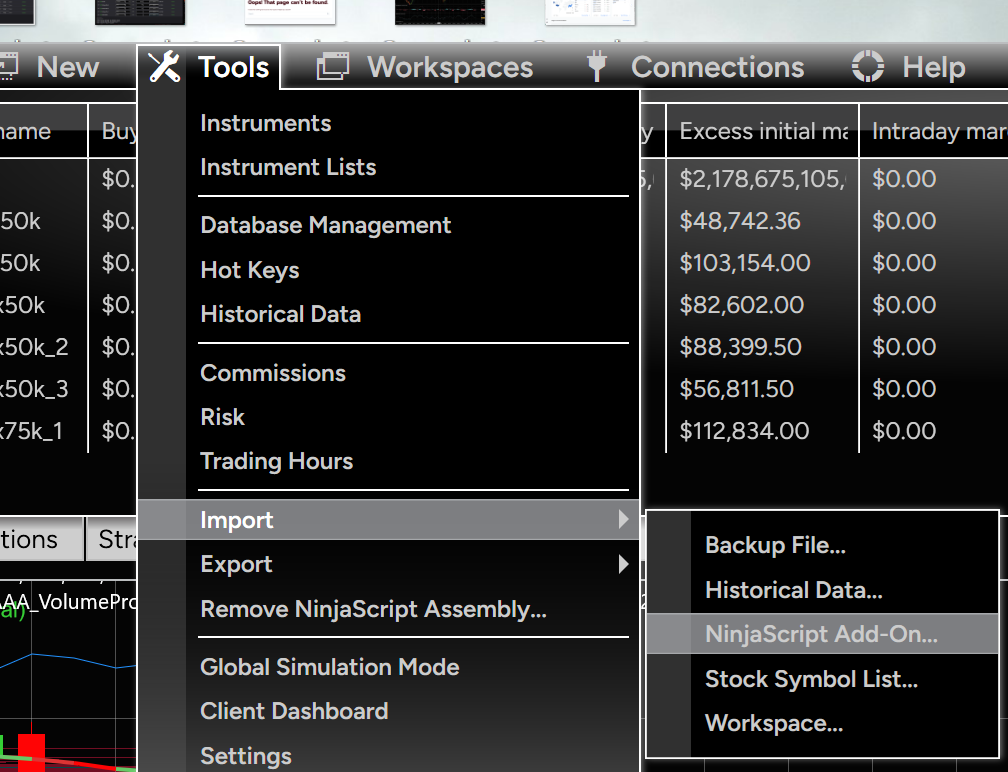
- Select the downloaded
.zipfile - Confirm the import and accept any NinjaTrader warnings
- Wait for the Import completed successfully message
- Restart NinjaTrader if the product instructions require it
For an Indicator:
Open a Chart → Right-click → Indicators → find your new indicator → Add → Apply
For an Add-On:
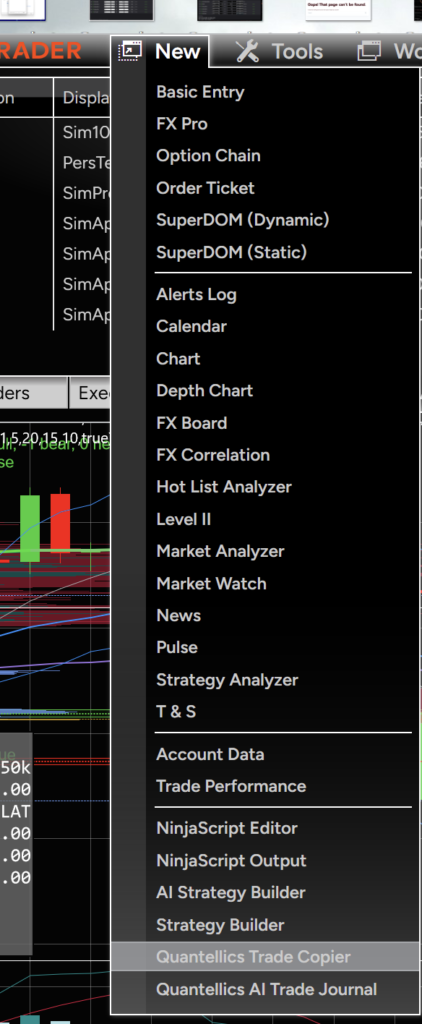
Look for it under the NinjaTrader Control Center → New menu or wherever the developer specifies.
⚠️ Important: Don’t manually extract or copy files into NinjaTrader folders unless the product documentation specifically tells you to. NinjaTrader’s import process installs the required NinjaScript files automatically.
Download → Import → Activate → Trade.
Quantellics tools are designed to make your trading workflow smarter—not more complicated.